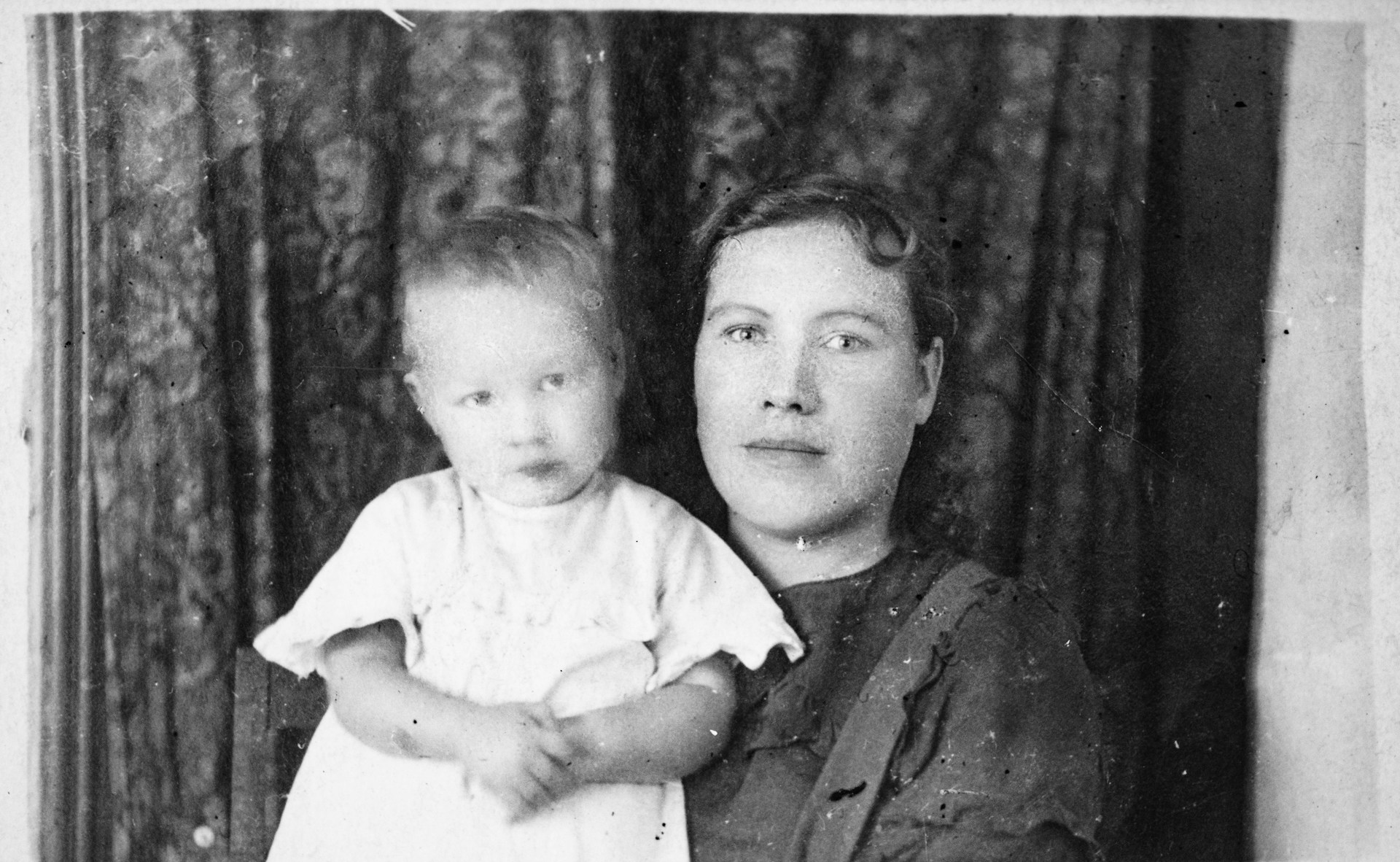
Real Photo Restoration with AI, 4 Tools That Deliver Results
For a long time, restoring old photos meant manual work. Even with AI, most tools don’t actually solve the problem; they just mask it. They add sharpness but fail to recover real detail.
This list isn’t about the most popular services. We picked tools that actually handle damage. The selection came from watching how each one behaves across different photo types, not from marketing claims.
What We Actually Tested Before Listing These Tools
Before putting this list together, we ran these tools on a mix of images. Old portraits. Shots with deep scratches. Faded color photos. Low-quality scans. Not every tool gave consistent results across the board.
We needed a clear way to separate the ones that work from the ones that just look good in a demo. So we focused on a few practical criteria during testing.
Here’s what we tracked with each tool in real scenarios:
- Ability to restore missing or damaged image areas;
- Performance on photos with mixed problems like fading and scratches;
- Consistency of output across multiple images;
- Speed of processing without sacrificing quality;
- Need for manual input or extra adjustments.
Only the tools that showed stable, repeatable results made the cut.
1. Renew Photo
Some tools handle one type of damage well but fall apart when the photo has multiple issues. Renew Photo doesn’t have that problem. It consistently delivers regardless of what’s wrong with the image.
You don’t need to tweak settings or run multiple passes. Upload a scratched, faded, low-quality photo, and it processes everything at once. According to our tests, that approach saves time and gives a more balanced result.
This tool handles the combination of problems you often see in old photos:
- Restores both color loss and physical damage in one pass;
- Reconstructs missing details rather than just sharpening existing pixels;
- Processes multiple issues without needing separate workflows;
- Produces consistent results across different image types;
- Requires no manual adjustments or technical know-how.
If you want one tool that does a bit of everything, this is probably it.
2. RetroFix
Speed is the whole point here. RetroFix doesn’t pretend to be the most powerful restoration tool. It just gets the job done fast.
You use this when you’re on your phone, you have a handful of photos, and you don’t want to spend five minutes on each one. The workflow is simple. Upload. Process. Download. That’s it.
For basic scenarios where time matters more than perfection:
- Processes images quickly with minimal waiting;
- Works smoothly on mobile devices;
- Uses a simple workflow without unnecessary steps;
- Handles light damage and minor blur effectively;
- Suits quick everyday use cases.
It’s the tool you grab when you just need a fast fix and then move on.
3. YouCam Enhance
Some photos are in rough shape. Deep scratches. Heavy fading. Details that are barely visible. That’s where YouCam Enhance comes in.
It takes a more aggressive approach than most tools. Sometimes that means the output looks a bit processed. But it often pulls out details that other tools simply miss. For heavily damaged images, that trade-off is worth it.
This tool is built for the hard cases:
- Removes deeper scratches and visible surface defects;
- Enhances contrast and color automatically without manual tweaks;
- Performs well on heavily degraded images;
- Improves clarity on complex damage patterns;
- Delivers noticeable visual changes even on problem photos.
When you’re dealing with a really beat-up photo, this is the one to try.
4. Canva AI Photo Restoration
Canva works a bit differently. It’s not just about restoring the photo; you can edit it right away in the same place.
You fix the image, then crop it, adjust it, or add text without switching between tools. This is useful if you actually plan to use the photo somewhere, not just restore it and leave it.
The combination of features is what sets it apart:
- Combines AI restoration with built-in editing tools;
- Fixes faded colors and minor defects in one step;
- Allows further adjustments after the restoration pass;
- Uses a beginner-friendly interface;
- Works across different devices and platforms.
It’s the practical choice when restoration is just the first step.
How to Decide Which One to Use
Picking the right tool isn’t about finding a universal ranking. It’s about matching the tool to your specific photo and what you need to do with it.
Maybe you have one photo with multiple problems. Or maybe you have fifty photos that just need a quick cleanup. Different scenarios call for different tools.
Here’s a simple way to think about it:
- Choose Renew Photo for full restoration in one step;
- Use RetroFix for quick, simple fixes;
- Pick YouCam Enhance for heavily damaged photos;
- Use Canva if you need editing after restoration.
Match the tool to the job, and you’ll waste less time guessing.
Final Thoughts
AI can actually restore old photos now, not just sharpen them. But the result still depends on picking the right tool for the problem. Each option in this list has a specific role. Use them that way, and you’ll get better results with less trial and error.
Executing Your Bash Script with Ease
For a long time, restoring old photos meant manual work. Even with AI, most tools don’t actually solve the problem; they just mask it. They add sharpness but fail to recover real detail. This list isn’t about the most popular services. We picked tools that actually handle damage. The selection came from watching how each …
The Top 5 AI CX Consulting Services That Deliver Personalization & 24/7 Autonomous Support
For a long time, restoring old photos meant manual work. Even with AI, most tools don’t actually solve the problem; they just mask it. They add sharpness but fail to recover real detail. This list isn’t about the most popular services. We picked tools that actually handle damage. The selection came from watching how each …